Advanced Accessibility in JavaFX
The advanced accessibility APIs of JavaFX let a custom control report its state, handle screen reader actions, and notify assistive technology when something changes. This tutorial introduces these features through building an interactive seat map step by step, starting with a simple window. You will make individual seats discoverable and selectable through assistive technology, then add a copyable selection summary that appears when JavaFX accessibility becomes active.
Prerequisites
Before building the example, make sure your environment matches the assumptions used throughout this tutorial.
As this example was validated with JDK 27 and JavaFX 27 SDK, the recommendation is to try it with the same versions for your operating system and hardware architecture.
NOTE: Use a compatible JDK and JavaFX SDK pair. Their major version numbers do not have to match, but the JDK must meet the selected JavaFX release's minimum requirement. For example, JavaFX 26 requires JDK 24 or later, so it cannot run on JDK 21.
To keep the example simple and easy to follow, place all Java source files in the same directory and use the default package.
Throughout this tutorial, we will build the application step by step, starting from the code of SeatAllocationApp.java, shown below.
This initial version opens an empty window, providing the foundation for the controls we will add in the next section.
To keep the application structure clear as the tutorial progresses, we will separate the startup logic from the JavaFX application itself. While the SeatAllocationApp class will focus on building the user interface and handling its behavior, the small Launcher below will provide the entry point for running the application.
To verify that JavaFX is configured correctly and that the tutorial application launches successfully, run the initial empty application from the a11-demo directory.
On Linux or macOS, first set PATH_TO_FX to the lib directory of the extracted JavaFX SDK and then launch the application:
You can try similar commands for Windows Command Prompt:
Once the empty window opens, close it and continue to building the seat map in the next section.
Support Direct Interaction with the Screen Reader
Mouse and keyboard support let someone navigate the seat map and select seats, but a screen reader also needs to know which seat each node represents, whether it is available or selected, and which actions it supports. Each seat must expose that information through JavaFX's accessibility APIs so someone using a screen reader can inspect the seat and select or deselect it.
So, direct interaction with a screen reader means implementing the JavaFX accessibility callbacks on each seat node.
The callbacks and notification method are defined on javafx.scene.Node and inherited by controls, shapes, and canvas subclasses:
| API | Who calls it? | Responsibility |
|---|---|---|
Object queryAccessibleAttribute(AccessibleAttribute, Object...) |
JavaFX's accessibility bridge calls this when assistive technology requests information about a seat. | Return the requested information. |
void executeAccessibleAction(AccessibleAction, Object...) |
JavaFX's accessibility bridge calls this when assistive technology requests an action on a seat. | Perform the requested action. |
notifyAccessibleAttributeChanged(AccessibleAttribute) |
Your control or other application code calls this after changing a value exposed through an accessible attribute. | Notify the accessibility bridge so assistive technology can query the updated information. |
You should override the first two methods to answer accessibility queries and handle requested actions. The Node API requires superclass delegation for queries and actions that a subclass does not handle.
Three enums define how a control describes its role, exposes information and handles actions requested by assistive technology:
AccessibleRoleidentifies the kind of interaction, such asBUTTON,LIST_VIEW, orSLIDER.AccessibleAttributeidentifies requested information, such asTEXT,SELECTED, orVALUE.AccessibleActionidentifies an operation, such asFIRE,EXPAND, orSET_VALUE.
The role determines which attributes and actions a node must support.
A seat can be selected independently of other seats, so let's use the TOGGLE_BUTTON role, with TEXT, SELECTED, and the FIRE action.
Each seat draws its identifier and a status word: Free, Chosen, or Occupied. Mouse clicks and Space or Enter toggle selection.
To achieve all this, create the Seat.java:
Selecting or deselecting a seat goes through setSelected(). This method prevents an unavailable seat from being selected and does nothing if the seat already has the requested selection state.
The map observes the read-only selection property to update its summary; it cannot use that property to change the seat's selection.
Continue the implementation by creating SeatMap.java that lets users explore three curved rows of seats and choose available seats with a mouse or keyboard.
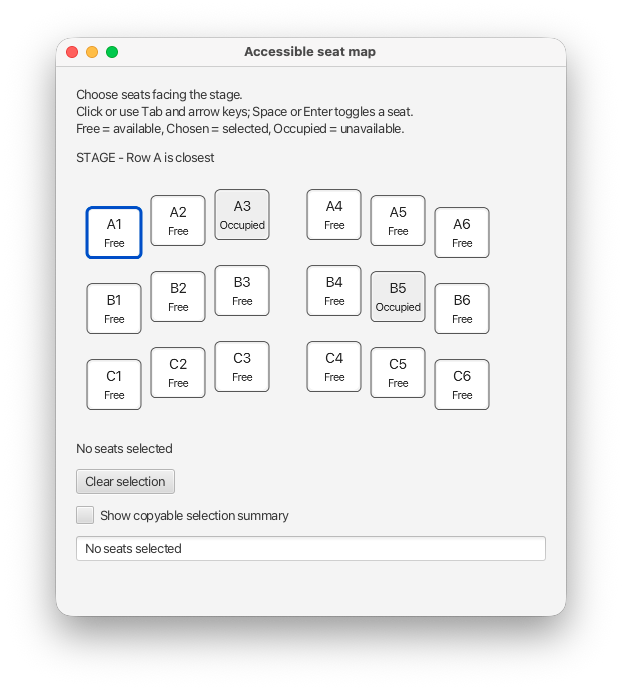
An aisle separates seats 3 and 4, while seats A3 and B5 are marked as unavailable. The seats are added in row order so users can press Tab to visit them in sequence.
This custom Pane displays the venue layout by positioning the individual Seat canvases in curved rows with an aisle between them. Users can explore that layout with the arrow keys, moving focus to the neighboring row or seat without changing selection. At a map edge, focus stays on the current seat.
Tab and Shift+Tab move through the seats and can leave the map. Unavailable seats remain focusable so keyboard users can inspect their location and status, but they cannot be selected.
The seat map now handles layout, navigation, and selection, but the application still opens an empty window.
To connect the map to the rest of the interface, let's modify existing SeatAllocationApp with the complete version below:
If you relaunch the application with the same command as shown in the Prerequisites section, the window will show rows A to C facing the stage, with six seats per row and a gap for the aisle.
Click a free seat to observe if its status becomes Chosen, and its identifier appears in the summary. Click it again to deselect it. A3 and B5 show as Occupied and cannot be selected. Press Tab to focus a seat, use the arrow keys to explore the layout, and press Space or Enter to toggle an available seat. The blue outline marks focus independently of selection. Finally, press Clear selection button to deselect every chosen seat.
You can now inspect and operate the map visually and with the keyboard. The next step is to make the same seat information available to a screen reader: which seat has focus, whether it is available, and whether you have selected it.
Return a Value to the Screen Reader
When someone reaches a seat with a screen reader, they need to distinguish their placement and understand its state. The accessible text of each seat should describe its row, number, and availability, then the application would handle selection and whether activation is allowed.
In the Seat constructor, add these lines immediately after setFocusTraversable(true):
Help text supplies instructions, though whether it is spoken depends on the screen reader and its settings.
JavaFX calls queryAccessibleAttribute(AccessibleAttribute attribute, Object... parameters) when assistive technology requests information. The attribute identifies what to return and some attributes also use parameters (for example, an item lookup needs an index).
For this implementation, override queryAccessibleAttribute(AccessibleAttribute attribute, Object... parameters) inside Seat class:
The attribute argument identifies the information being requested as in the following table:
| Attribute | Return type | Where the answer comes from |
|---|---|---|
TEXT |
String |
The superclass uses the accessible name set in the constructor, such as “Row A, seat 3, unavailable.” |
SELECTED |
Boolean |
isSelected(), the same state that determines the drawn status. |
DISABLED |
Boolean |
True when the seat is unavailable or its node is disabled. |
| Other attributes | Depends on the attribute | The superclass supplies general node information, including bounds and focus. |
Relaunch and explore the map with a screen reader. Check that seats are individually discoverable and that their names and states match the display. Reading information should never toggle selection or move focus. The next section explore how the screen reader can request a selection change.
Perform an Action on Behalf of the Screen Reader
A user with a screen reader may invoke a control through an accessibility action rather than send a mouse click or a keyboard event.
When assistive technology wants to request an operation, consider overriding executeAccessibleAction(AccessibleAction action, Object... parameters) method.
Inside Seat class override this method to activate the seat to select or deselect it:
An accessibility action should follow the same selection rules as every other input path, so this method rejects unavailable or disabled seats before calling setSelected().
To check how this implementation works, relaunch and activate an available seat through your screen reader. The seat's visible status and the summary should change together. Repeat the action to deselect it, and verify that an unavailable seat cannot be selected. Queries now return the new selection state, but we still need to tell assistive technology when that state changes.
Notify the Screen Reader That a Value Has Changed
When someone selects a seat, they need to confirm that it is now part of their selection. If they press Clear selection button, they need to know those seats are no longer selected.
A user can check the seat labels and summary, yet someone using a screen reader needs those changes exposed to assistive technology.
So the application should send a notification whenever the selection of a seat changes so the screen reader can retrieve its updated state.
To reach this objective, adjust setSelected() method in Seat.java with:
With this addition, someone using a screen reader can check whether a seat is selected after choosing it or clearing their selection.
Placing the notification in setSelected() ensures assistive technology is notified however someone operates the map: by clicking a seat, pressing Space or Enter, using a screen-reader command, or activating Clear selection.
Run the application again with the command from the Prerequisites, select several seats, and activate Clear selection. Those chosen seats should show as available, and the summary should read No seats selected. Visit those seats with your screen reader and check that they are reported as unselected. The screen reader decides when and how to announce changes, so it may not announce every cleared seat while focus remains on the clear button.
Determine Whether Accessibility Is Active
JavaFX exposes if its accessibility features are active through Platform.isAccessibilityActive. To update the interface when accessibility becomes active, you can bind to Platform.accessibilityActiveProperty.
The seat map already exposes its seats and supports their selection, yet, a convenient feature would be to show a copyable text summary when assistive technology starts using the application.
To implement this, modify start() method of SeatAllocationApp by inserting the block below immediately before VBox root = ...:
Also, replace the VBox declaration to take into account the readout and showDetails components:
Users now receive a copyable summary and the application shows it automatically when JavaFX accessibility is active. The field stays in sync as seats are selected or cleared, and users can select and copy its text without editing it. It remains visible while the checkbox is selected or accessibility is active; when hidden, it leaves no empty space in the layout. Overall, this new change gives users a convenient way to review and copy their selection while preserving access to every seat.
Check the Complete Interaction
Run the application on your target desktop:
And check both ordinary input and assistive technology:
| Scenario | Expected behavior |
|---|---|
| Inspect the map | Three curved rows, six seats per row, an aisle, and unavailable seats A3 and B5 are visible. |
| Click an available seat twice | Its status changes from Free to Chosen and back; the summary stays in sync. |
| Tab and Shift+Tab | Each seat has visible focus; traversal can enter and leave the map. |
| Arrow keys | Focus moves between neighboring seats, stays within the map, and does not change selection. |
| Space and Enter | An available focused seat toggles once per key release. |
| Inspect and activate A3 or B5 | The seat is identified as unavailable and cannot be selected. |
| Explore with a screen reader | Individual seats expose their row, number, availability, toggle role, and selection state. |
| Invoke the accessibility action | The same seat-selection rules apply as with mouse and keyboard input. |
| Clear selection | Selected seats become unselected, the summary updates, and each changed seat sends a selection notification. |
| Show the copyable summary | Its text reflects the selection and can be selected and copied. |
| Activate accessibility after launch | The copyable field appears when JavaFX's activity property becomes true. |
Keep track of the operating system, JavaFX runtime, and screen-reader version when testing this example. Screen readers may intercept arrow keys or use their own navigation commands, so test their exploration and activation commands as well as the application's keyboard handlers.
The example in this tutorial uses fixed geometry, colors, English labels, and a small number of seats. A production venue map needs resizing or zoom, theme and high-contrast support, localization, and booking-data synchronization. Thousands of seats may require a different navigation and rendering strategy. The local selection here is not a reservation: a booking service must validate availability before confirming a purchase.
Lastly, for your own controls, begin with the role that matches the interaction, then implement its documented attributes and actions against the control's existing state. Use standard JavaFX controls where they fit, and test custom behavior with assistive technology on the target platform. The finished interaction should let a user understand the current setting, change it, and confirm the result through their chosen way of using the application.
Last update: November 23, 2026